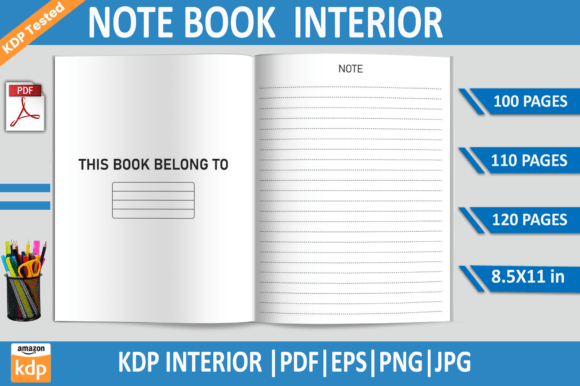
Note Book KDP Interior Template: What Most First-Time Sellers Get Wrong
When you are preparing a notebook or journal for Amazon KDP, the interior template you choose can make your work either smooth or frustrating. Many new sellers look at a Note Book KDP Interior Template and assume it is just a set of lined or blank pages. In reality, the structure, formatting, and file specifications of your notebook interior determine whether your listing will be approved, your print quality will be consistent, and your customers will be satisfied. Understanding what to look for before you download or purchase a template saves time, money, and unnecessary revisions.
Why the Right Template Matters More Than You Think
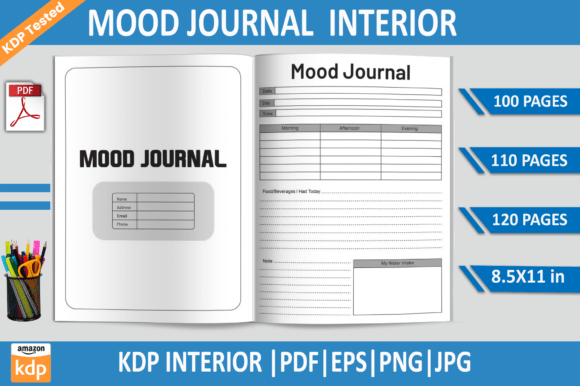
A notebook interior is not just about adding lines to a page. The dimensions, bleed settings, resolution, and file type all play a role in how your final product looks on Amazon and in the hands of a buyer. A Note Book KDP Interior Template that includes multiple file formats — such as PDF, EPS, PNG, and JPG — gives you flexibility. You can use the PDF for direct upload, the EPS for further editing in Adobe Illustrator, and the PNG or JPG for previews or marketing materials. But having these options only helps if each file is correctly configured for KDP’s requirements.
One of the most common misunderstandings is thinking that any PDF file will work. Amazon KDP has specific guidelines for trim size, bleed, and resolution. If your template does not match those guidelines, your file may be rejected or your printed book may have white edges, cropped content, or blurry lines.
Overlooking Bleed and No-Bleed Options
Many notebook interiors are designed with no bleed, which means the content stays within the safe margin and does not extend to the edge of the page. For a lined journal or a simple notebook, no bleed is often perfectly fine. However, if your notebook has colored borders, full-page designs, or decorative elements that go to the edge, you need a bleed version. A Note Book KDP Interior Template that offers both bleed and no-bled options gives you the freedom to choose based on your specific design.
A mistake I see frequently is someone downloading a no-bleed template, then adding colored headers or background shapes that extend beyond the safe zone. The result is a file that gets flagged during KDP review, or worse, prints with uneven margins. Check your template’s specifications before you begin designing, and decide early whether your notebook will have edge-to-edge elements or stay within a clean margin.
Ignoring Resolution and Pixel Quality
Resolution is another area where sellers assume everything is fine. A template listed at 300 DPI is standard for print, and most quality interiors meet this mark. But if you are working with PNG or JPG files, you need to make sure they are truly high-resolution and not upscaled from a lower source. Blurry lines or fuzzy text in a notebook interior look unprofessional and lead to returns or bad reviews.
When you evaluate a Note Book KDP Interior Template, check the clarity of any sample pages. If the lines are crisp at full size and the text is sharp, the resolution is likely correct. If you see pixelation when zoomed in, that template will not produce a clean print. The PNG files included with a good template should have transparent backgrounds and high enough resolution to use in previews or marketing without losing quality.
Choosing the Wrong Page Count for Your Niche
Page count is not just a number. Different types of notebooks appeal to different buyers. A 100-page notebook is great for a simple daily journal or a logbook. A 120-page notebook feels more substantial and works well for planners or travel journals. A 110-page option might be ideal for a mid-range product that balances thickness with cost. Sellers often pick a page count based on what is easiest or cheapest, without considering what their target audience actually wants.
If you are selling a gratitude journal, 100 pages may feel too short for a full year. If you are selling a quick-reference logbook, 120 pages might feel like overkill. Think about how the notebook will be used. A Note Book KDP Interior Template that includes multiple page count options gives you the ability to test different versions or launch multiple products without starting from scratch each time.
Assuming All Editable Files Are Truly Editable
An EPS file is great for editing in Adobe Illustrator, but only if it is structured properly. Some templates claim to be editable but come with flattened layers, embedded fonts that cannot be changed, or complex groupings that are difficult to work with. Before you buy or download, confirm that the EPS file is organized with separate layers for lines, margins, text, and any decorations. This makes it possible to change colors, add your own branding, or adjust spacing without breaking the template.
I have seen sellers spend hours trying to modify a template that was not actually set up for easy editing. They end up with distorted layouts or mismatched margins. If you are not an expert in vector editing, look for templates that are described as fully editable and test a small change first. A well-prepared EPS file will let you adjust the line weight, spacing, and even the page size if needed.
Testing on KDP Before You Commit
One of the most reassuring features you can find in a Note Book KDP Interior Template is a statement that the files have been tested on Amazon KDP. This means someone has already uploaded the exact files, gone through the review process, and confirmed that they pass. That does not guarantee your particular design will pass, especially if you make modifications, but it gives you a strong starting point.
Even with tested files, you should run your own checks. Upload a sample PDF to KDP’s previewer and look at each page. Check for alignment, margin consistency, and whether any content falls into the bleed zone if you are using a no-bleed file. It takes only a few minutes and can catch problems before you publish.
What to Verify Before You Buy or Download
Before you commit to any notebook interior template, run through a short checklist. Confirm the trim size is exactly 8.5 x 11 inches if that is what you need. Verify that the resolution is 300 DPI and that the PDF is print-ready. Check whether the template includes bleed or no-bleed versions, and decide which one fits your design. Make sure the EPS file is editable if you plan to customize. Look at the included formats: PDF, EPS, PNG, and JPG cover most use cases. And finally, confirm the page count matches your product concept.
A Better Approach to Using Your Template
Once you have a reliable template, resist the urge to rush through customization. Open the EPS file in Adobe Illustrator and make a backup copy before you make any changes. Adjust line colors, spacing, or header designs with care, and always preview the final PDF before uploading. If you are adding a table of contents, page numbers, or decorative elements, keep them within the safe margin. For no-bleed templates, that margin is typically half an inch from the edge. For bleed templates, your background elements should extend to the full trim size with a 0.125-inch bleed on each side.
Consider creating a simple style guide for your notebook series. Use consistent fonts, line styles, and header treatments across all your products. This builds brand recognition and makes future projects faster. A notebook interior template is not just a one-time tool — it can be the foundation for an entire line of products if you use it systematically.
Finally, remember that the file formats included in the template are there to serve different purposes. The PDF is for uploading to KDP. The EPS is for editing. The PNG and JPG are for marketing, previews, or proofing. Do not try to use a JPG for printing or an EPS for uploading. Each format has its role, and using them correctly prevents quality loss.
A well-chosen Note Book KDP Interior Template saves you hours of formatting work and helps you launch a professional product that meets Amazon’s standards. By avoiding the common mistakes — ignoring bleed options, assuming all files are editable, picking the wrong page count, or skipping resolution checks — you set yourself up for a smoother publishing experience and a better result for your customers. Take a few extra minutes to evaluate your template before you start, and you will thank yourself later.
Note Book KDP Interior Template: What Most First-Time Sellers Get Wrong
When you are preparing a notebook or journal for Amazon KDP, the interior template you choose can make your work either smooth or frustrating. Many new sellers look at a Note Book KDP Interior Template and assume it is just a set of lined or blank pages. In reality, the structure, formatting, and file specifications of your notebook interior determine whether your listing will be approved, your print quality will be consistent, and your customers will be satisfied. Understanding what to look for before you download or purchase a template saves time, money, and unnecessary revisions.
Why the Right Template Matters More Than You Think
A notebook interior is not just about adding lines to a page. The dimensions, bleed settings, resolution, and file type all play a role in how your final product looks on Amazon and in the hands of a buyer. A Note Book KDP Interior Template that includes multiple file formats — such as PDF, EPS, PNG, and JPG — gives you flexibility. You can use the PDF for direct upload, the EPS for further editing in Adobe Illustrator, and the PNG or JPG for previews or marketing materials. But having these options only helps if each file is correctly configured for KDP’s requirements.
One of the most common misunderstandings is thinking that any PDF file will work. Amazon KDP has specific guidelines for trim size, bleed, and resolution. If your template does not match those guidelines, your file may be rejected or your printed book may have white edges, cropped content, or blurry lines.
Overlooking Bleed and No-Bleed Options
Many notebook interiors are designed with no bleed, which means the content stays within the safe margin and does not extend to the edge of the page. For a lined journal or a simple notebook, no bleed is often perfectly fine. However, if your notebook has colored borders, full-page designs, or decorative elements that go to the edge, you need a bleed version. A Note Book KDP Interior Template that offers both bleed and no-bleed options gives you the freedom to choose based on your specific design.
A mistake I see frequently is someone downloading a no-bleed template, then adding colored headers or background shapes that extend beyond the safe zone. The result is a file that gets flagged during KDP review, or worse, prints with uneven margins. Check your template’s specifications before you begin designing, and decide early whether your notebook will have edge-to-edge elements or stay within a clean margin.
Ignoring Resolution and Pixel Quality
Resolution is another area where sellers assume everything is fine. A template listed at 300 DPI is standard for print, and most quality interiors meet this mark. But if you are working with PNG or JPG files, you need to make sure they are truly high-resolution and not upscaled from a lower source. Blurry lines or fuzzy text in a notebook interior look unprofessional and lead to returns or bad reviews.
When you evaluate a Note Book KDP Interior Template, check the clarity of any sample pages. If the lines are crisp at full size and the text is sharp, the resolution is likely correct. If you see pixelation when zoomed in, that template will not produce a clean print. The PNG files included with a good template should have transparent backgrounds and high enough resolution to use in previews or marketing without losing quality.
Choosing the Wrong Page Count for Your Niche
Page count is not just a number. Different types of notebooks appeal to different buyers. A 100-page notebook is great for a simple daily journal or a logbook. A 120-page notebook feels more substantial and works well for planners or travel journals. A 110-page option might be ideal for a mid-range product that balances thickness with cost. Sellers often pick a page count based on what is easiest or cheapest, without considering what their target audience actually wants.
If you are selling a gratitude journal, 100 pages may feel too short for a full year. If you are selling a quick-reference logbook, 120 pages might feel like overkill. Think about how the notebook will be used. A Note Book KDP Interior Template that includes multiple page count options gives you the ability to test different versions or launch multiple products without starting from scratch each time.
Assuming All Editable Files Are Truly Editable
An EPS file is great for editing in Adobe Illustrator, but only if it is structured properly. Some templates claim to be editable but come with flattened layers, embedded fonts that cannot be changed, or complex groupings that are difficult to work with. Before you buy or download, confirm that the EPS file is organized with separate layers for lines, margins, text, and any decorations. This makes it possible to change colors, add your own branding, or adjust spacing without breaking the template.
I have seen sellers spend hours trying to modify a template that was not actually set up for easy editing. They end up with distorted layouts or mismatched margins. If you are not an expert in vector editing, look for templates that are described as fully editable and test a small change first. A well-prepared EPS file will let you adjust the line weight, spacing, and even the page size if needed.
Testing on KDP Before You Commit
One of the most reassuring features you can find in a Note Book KDP Interior Template is a statement that the files have been tested on Amazon KDP. This means someone has already uploaded the exact files, gone through the review process, and confirmed that they pass. That does not guarantee your particular design will pass, especially if you make modifications, but it gives you a strong starting point.
Even with tested files, you should run your own checks. Upload a sample PDF to KDP’s previewer and look at each page. Check for alignment, margin consistency, and whether any content falls into the bleed zone if you are using a no-bleed file. It takes only a few minutes and can catch problems before you publish.
What to Verify Before You Buy or Download
Before you commit to any notebook interior template, run through a short checklist. Confirm the trim size is exactly 8.5 x 11 inches if that is what you need. Verify that the resolution is 300 DPI and that the PDF is print-ready. Check whether the template includes bleed or no-bleed versions, and decide which one fits your design. Make sure the EPS file is editable if you plan to customize. Look at the included formats: PDF, EPS, PNG, and JPG cover most use cases. And finally, confirm the page count matches your product concept.
A Better Approach to Using Your Template
Once you have a reliable template, resist the urge to rush through customization. Open the EPS file in Adobe Illustrator and make a backup copy before you make any changes. Adjust line colors, spacing, or header designs with care, and always preview the final PDF before uploading. If you are adding a table of contents, page numbers, or decorative elements, keep them within the safe margin. For no-bleed templates, that margin is typically half an inch from the edge. For bleed templates, your background elements should extend to the full trim size with a 0.125-inch bleed on each side.
Consider creating a simple style guide for your notebook series. Use consistent fonts, line styles, and header treatments across all your products. This builds brand recognition and makes future projects faster. A notebook interior template is not just a one-time tool — it can be the foundation for an entire line of products if you use it systematically.
Finally, remember that the file formats included in the template are there to serve different purposes. The PDF is for uploading to KDP. The EPS is for editing. The PNG and JPG are for marketing, previews, or proofing. Do not try to use a JPG for printing or an EPS for uploading. Each format has its role, and using them correctly prevents quality loss.
A well-chosen Note Book KDP Interior Template saves you hours of formatting work and helps you launch a professional product that meets Amazon’s standards. By avoiding the common mistakes — ignoring bleed options, assuming all files are editable, picking the wrong page count, or skipping resolution checks — you set yourself up for a smoother publishing experience and a better result for your customers. Take a few extra minutes to evaluate your template before you start, and you will thank yourself later.